



The Cooldown Planner is where you build your boss-by-boss healing, defensive, mobility, and text reminder plan, in Grid or Timeline view, with real-time collaborative editing.
When it's time for raid night, copy your notes from the Setup page and paste them into Northern Sky Raid Tools so every raider gets their own personal reminders.
Prefer watching it done? This community walkthrough covers the whole healer workflow, from building a CD plan to importing comps that match your group. Jump straight to a chapter:
Community video guide by Cairnsy · Watch on YouTube
Cooldown Planning
The Cooldown Planner is where you plan healing, mobility, defensives, text reminders and more for each boss encounter. It has two views, Grid and Timeline, and supports real-time collaborative editing. There's two types of reminders.
Spell Reminders - Any spell you can assign. They show in the icon or row view in NSRT in game. Text Reminders - These are 'notes' reminders that you can assign. These show in the text display of NSRT in game, and can have Text to Speech.
Cooldown Planner
Creating & Managing
Each boss column on the Setup page has a CD button at the top. Click it to create or open the Cooldown page for that boss.

Create a CD Page from Setup
On the Setup page, click CD in a boss column. This creates a Cooldown page linked to the Setup. The roster syncs automatically, players in the Setup appear in the CD page.
Smart Roster Sync
Changing who is in/out on the Setup updates the CD roster. Players toggled out become inactive in the CD page. You can also import a roster manually from the sidebar if you're not using a Setup.
Plan Your Cooldowns
Use the Grid or Timeline view to assign spells to boss events. Place healing cooldowns, defensives, mobility, and text reminders across the fight timeline.
Copy on Raid Night
Go to the Setup page and click Copy All Notes to copy CDs, Assignments, invite lists, and raidframe arrangements for every boss at once. Paste into Northern Sky Raid Tools in-game.
Collaborative Editing
Multiple editors can work on the same CD page at the same time. Changes sync in real-time, saves automatically. Undo and redo with Ctrl+Z / Ctrl+Shift+Z.
Grid & Timeline Views
Switch between the two views at the top of the page. Both share the same underlying data, so assignments made in one view appear in the other.
- Grid: simpler spreadsheet-like view. Good for quick overviews and fast assignments
- Timeline: visual timeline, adjust phases, place precise spell positioning. More detail, more control
Spell Filters
The two views have different ways of filtering spells:
- Grid: Click a player or spell category to see the list of spells available for assignment. Click or Drag a spell to begin assigning it.
- Timeline: Click the Spell Filters button in the top left to toggle the visible spell types for each player. You can also adjust the spells for single players by clicking their class colored bar in the left of the timeline.
Boss Spells
The boss track at the top shows the boss's spell casts throughout the fight.
- Timers: hover a boss cast to see the timestamp and spell name
- Types and Colors: boss spells are color-coded by type (damage, debuff, movement, etc.). Hover over a spell to see the spell type.
- Automatic Updates: boss spell data updates automatically when we make changes. No manual maintenance needed
Grid Controls
The Grid view lays out players as rows and boss events as columns. Each cell represents a moment where you can assign spells.
Assigning Spells (Grid)
- Select a player or spell category to see the list of spells available for assignment.
- Drag a spell from the spell list into a cell
- Left-click a spell in the list to enter stamp mode, then left-click cells to stamp the spell repeatedly. Press ESC or right-click to exit stamp mode
- Drag an assigned spell to move it to a different cell
- Right-click an assigned spell to remove it
- Alt+Right-click an assigned spell to open Spell Settings
- Ctrl+C on an assigned spell or text reminder to copy it (with its settings), then Ctrl+V over a cell to paste a copy there
Organise
Click the Organise button to automatically sort and clean up the grid layout.
Timeline Controls
The Timeline view shows a horizontal timeline per player, with boss casts and phases overlaid. This is where you get the most precise control over spell timing.
Filters
The Spell Filter bar below the boss track controls what's visible:
- Player Spell Filters: click a player name to filter spells for that player only, overriding global filters
- Keep Assigned: always show rows that have assignments, regardless of filters
- Default / Condensed / Assigned: view mode toggles for how much detail to show. I recommend using the Assigned one when you are
- Show all / Hide all: quick-toggle all spell rows
Note that the filters dont filter the CD Notes output.
Assigning Spells (Timeline)
- Left-click an empty spot on a player's spell row to assign a spell at that time
- Left-click and drag an assigned spell to move it
- Right-click an assigned spell to remove it
- Alt+Right-click an assigned spell to open Spell Settings
- Ctrl+C on an assigned spell or text reminder to copy it (with its settings), then Ctrl+V anywhere on a row to paste a copy there
Multi-select & Bulk Edit (Timeline only)
Pick a group of assigned spells / text reminders and move, edit, or delete them together.
- Ctrl + drag to box-select a group of assigned spells / text reminders
- Ctrl + click an assigned spell / text reminder to add or remove it from the selection
- Ctrl + double-click to select every cast of that spell on that player
- Drag any selected item (or the highlighted box) to move the whole group
- Alt+Right-click anything in the selection to open batch Spell Settings for everything at once
- Del / Backspace removes everything selected
- Esc clears the selection
Copy & Paste Settings
Ctrl+C / Ctrl+V work in both Grid and Timeline. Hover any assigned spell or text reminder, Ctrl+C to copy it (settings carry over), then Ctrl+V anywhere, same player, different player, or in the other view, to paste a copy there.
Zoom
Left-click and drag on the timeline to zoom into a section. Use the phase zoom buttons in the top-right for quick phase-level zooming.
- Shift+Z: reset zoom to the full timeline
Adjust Phases
Red phase bars on the timeline are draggable. Adjust them if your raid's phase timings differ from the default. Spells assigned relative to a phase will shift with it, so check your assignments after adjusting.
You do not need to adjust phases for timers to work in-game. A spell assigned X seconds into a phase will always trigger X seconds into the phase regardless of the phase bar position. They are there to help you plan for timers that fit what you get in game.
Cooldowns are timed from the start of their phase. If your raid pushes a phase early, say at 1:55 instead of the planned 2:00, every cooldown in the next phase comes 5 seconds early too, so your plan keeps lining up with the fight. Cooldowns set to Static Timer from Pull in Spell Settings stay on their exact time instead.
Heatmap
Press Q to toggle the heatmap overlay. This shows aggregated spell usage from WCL Top Rankings behind your assignments, so you can see where top players are casting while you plan.
Supporter Feature
The timeline heatmap overlay is available for Rare Supporter tier and above.
General Assignments
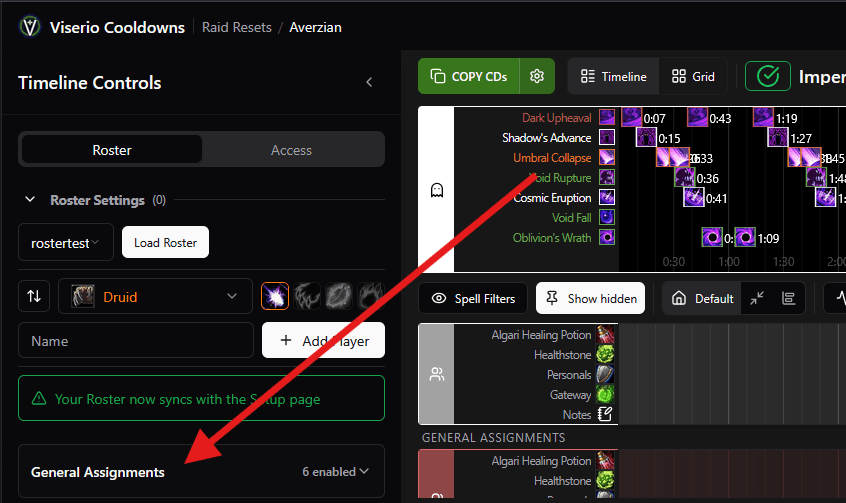
In the bottom of the list of players in the left Sidebar, you can enable general assignments to everyone, tanks, healers, melee, ranged, groups (G1–G8), or specific classes and specs. This is useful for things like text or defensive reminders for Everyone, or "all Evokers cast Zephyr here" without assigning each player individually.
Spell Settings
Alt+Right-click any assigned spell to open the Spell Settings dialog. This gives you per-cast control over:
- Custom Cooldown: override the spell's default cooldown for planning purposes (only affects the planner, not the in-game timer)
- Raidframe Glow: assign one or more targets to glow on raidframes when the spell reminder triggers. Great for externals and Power Infusion
- Timer Options: choose between Dynamic Timer from Phase (default), Dynamic Timer from Previous Phase, or Static Timer from Pull
- Custom Text: add a text label that shows alongside the spell reminder
- Text-to-Speech (TTS): the custom text is spoken aloud in-game via NSRT
- Text Color: color the text reminder for emphasis
- Audio Countdown: play an audio countdown before the reminder triggers
- Duration: adjust how long the reminder stays on screen
- Soundpacks: choose from different sound packs for the audio alert
Export & Import
Start from the Cooldown Library
Don't stare at a blank boss grid. The Cooldown Library, the CD Lib as it's known, is a growing collection of cooldown plans shared by other raid leaders, alongside official Viserio examples. Find one that fits your boss and comp, import it in one click, then make it your own. Browse it any time from the sidebar, or jump straight into the Cooldown Library.
Import from WCL Top
Use WCL Top Rankings to browse what top-ranked players are casting. Copy their spell patterns and import them in the CD page's Setup sidebar as a starting point for your own plan.
Import / Export Assignments
The Import/Export buttons (top-right, below the boss track) let you share your entire cooldown layout. Other players can import it and adapt it to their roster.
This feature is also used for the supporters Cooldown Examples.
Copy CDs
The CD page has a Copy button to copy the note for this boss. However, it's recommended to copy from the Setup page instead, using Copy All Notes copies CDs, Assignments, invite lists, and raidframe arrangements for every boss in one go.
Player-Sheet
Raiders see their assigned cooldowns on their Player-Sheet. Everything from every boss in the Setup, in one personalised view.
See Also
-
Boss Guides: per-boss cooldown-planning notes for the current raid, starting with Rotmire
-
Player-Sheet: view your assigned cooldowns and assignments for each boss
-
Cooldown Library: import a community or official cooldown plan instead of starting from scratch
-
Resets & Setups: where you create the Setup that feeds the CD page
-
Assignments: plan non-cooldown tasks alongside your CDs
-
WCL Top Rankings: browse top-ranked cooldown patterns to inform your plan
-
WCL Review: analyze your logs against your plan after raiding
-
Northern Sky Raid Tools: getting your plan into the in-game addon

Required addon for importing raid notes. The addon reads your exported plans and shows each raider their personal cooldown and assignment reminders.