



Season 2 is underway, so here is what Season 1 turned into.
With over 200 updates since Season 1 start. We have made countless improvements, and tons of new features. The umbrella of wow tools now covers most of your raid planning, and a bunch of analysis of your team: an addon in the game, a bot in your Discord, a Roster Report that shows data for the team, an API for your own tools, and a solver that builds your comp and fills your assignments.
Almost all of it began as a request in Discord. So if you have requests, please tell us! It helps shape what we focus on next.
If you would rather watch than read, this video also goes over some of it.
In the game
The WowUtils addon, with RCLootCouncil integration
Crests, upgrade progress and crafting sparks are exactly what a loot council needs, and Blizzard's API exposes none of it. The addon tracks it while you play and puts it in the RCLootCouncil voting window as a column, and on your own loot frame while you pick a response.


- Nothing to fill in. It picks everything up on its own and shares it around the raid after each kill.
- It goes both ways. Your team's wishlists and sim results show in game.
- Free, in beta. On CurseForge, the one named wowutils by Ironi. Another addon answers the same search.
WowUtils Bridge
WoW only reads its saved files at login or a reload, so automatic two-way data needs something on the desktop. Bridge is that, and only one person per guild has to run it.

- In: your team's wishlists and sims, straight into the game.
- Out: crests, watermarks, Spark counts and real Great Vault contents.
- Free Windows download, with instructions to verify the file before you run it.
Baldio, the Discord bot
Your raid week lives here. Your team lives in Discord. Baldio posts one into the other.
- Raid nights with the lineup attached as an image, edited in place rather than reposted.
- Signups for your raid calendar. Raiders can toggle attendance on signup posts, or any future event.
- Reminders before pull for anyone who has not answered their signup for upcoming raids, or has not refreshed stale sims.
- An officer feed of raid nights, signups, applications, plans going live and roster changes. So you can see on Discord when someone changed something on WowUtils.
- And more! The Discord bot is actively getting improved, so your feedback is very valuable to us.
It is all configured on your group's Integrations page now, instead of a wall of slash commands.
Your roster, in one place
The Roster Report
Live game data instead of a spreadsheet that was accurate on Monday and fiction by Thursday: item level and gear per slot, upgrade progress, enchants and gems, Mythic+ rating and keys, professions and Great Vault.

- It works like a spreadsheet. Sort and filter from the column headers, drag and resize columns, layout remembered.
- Filters shaped like real questions. "Has gear issues", "Not raid ready", "No key this week".
- You can see how stale it is, per character, with a queue jump for the one you need now.
Planning Hub - Your raid week, on one page
The Planning hub is the hub for your weekly plans. Every setup of the week, the bosses in it, and whether cooldowns and assignments exist for each.

- Easy overview of the week. Shows all your setups for the week, and lets you easily jump to the setup, calendar date, cds or assignments to adjust the plan.
- AutoComp for a quick setup. AutoComp lets you automatically generate a setup for the week.
Your own page in the group
Every raider gets one, which mostly means officers stop answering the same five questions.

- Raise your hand for a boss. Tick the bosses you want in on, or want to bonus roll, and your raid lead reads it off your player card in the setups planner.
- Your nights, answered in place, with the bosses you play on each.
- Your characters and sims, including which ones have gone stale.
- Easy calendar signups. Quick toggles of signup status on the right.
- A next tier check-in, plus whatever the officers need from you as a short checklist.
- Find the You page in the group hub, as the top option in the menu list.
Recruiting
Your team's own apply page, instead of a form on one site and a spreadsheet on another.

- Battle.net sign-in, so the character on the application is a real one.
- Item level, M+ score and progression sit next to their answers.
- Accepting puts them on your roster, and recruiting has its own permissions.
The calendar
A raid night carries three things: the schedule that made it, the people who answered it, and the setup that is playing it.

- Link a setup to a night and Baldio can post it with the real lineup on Discord.
- Absences land in the setup. Someone out on Thursday reads as out inside Thursday's setup.
- Call-outs bench themselves, and AutoComp builds from who is actually available.
- Attendance from your logs. Who signed up next to who showed up, mains and alts included.
The API
Pull Wowutils data into your own spreadsheets and bots. Push data like sims, signups or roster edits.

- Read: roster, resets and setups, calendar and signups, wishlists, sim freshness, activity, M+ keys.
- Write: push a sim, set a signup, edit the roster, add or remove setups.
- Writes land live, appearing for anyone with the planner open.
- Find it in the integrations in the Group Hub, off until an admin turns it on, with a points-based quota you can watch.
The Cooldown Library and templates
A public shelf of cooldown plans shared by users. Free to import, free to publish, and your raiders stay anonymous.
Also contains the Supporter perk of prefilled CD templates that fit any comp. Handcrafted by Viserio. Allows you to make a full setup worth of cds in less than a minute!

- Everything lands as a template, with cooldowns on a spec or class slot instead of a name. Dynamically adjusting when you adjust your setup.
- One template, many setups. The template can be applied to any number of setups. Perfect for splitruns or multiruns of farm content.
Curio: AutoComp and AutoAssign
AutoComp builds your setup, who plays each boss. AutoAssign fills the per-boss jobs, who soaks and kicks and stands where. A click each.
AutoAssign is built before the tier, and has updated logic throughout the tier, so your assignments stay smart.
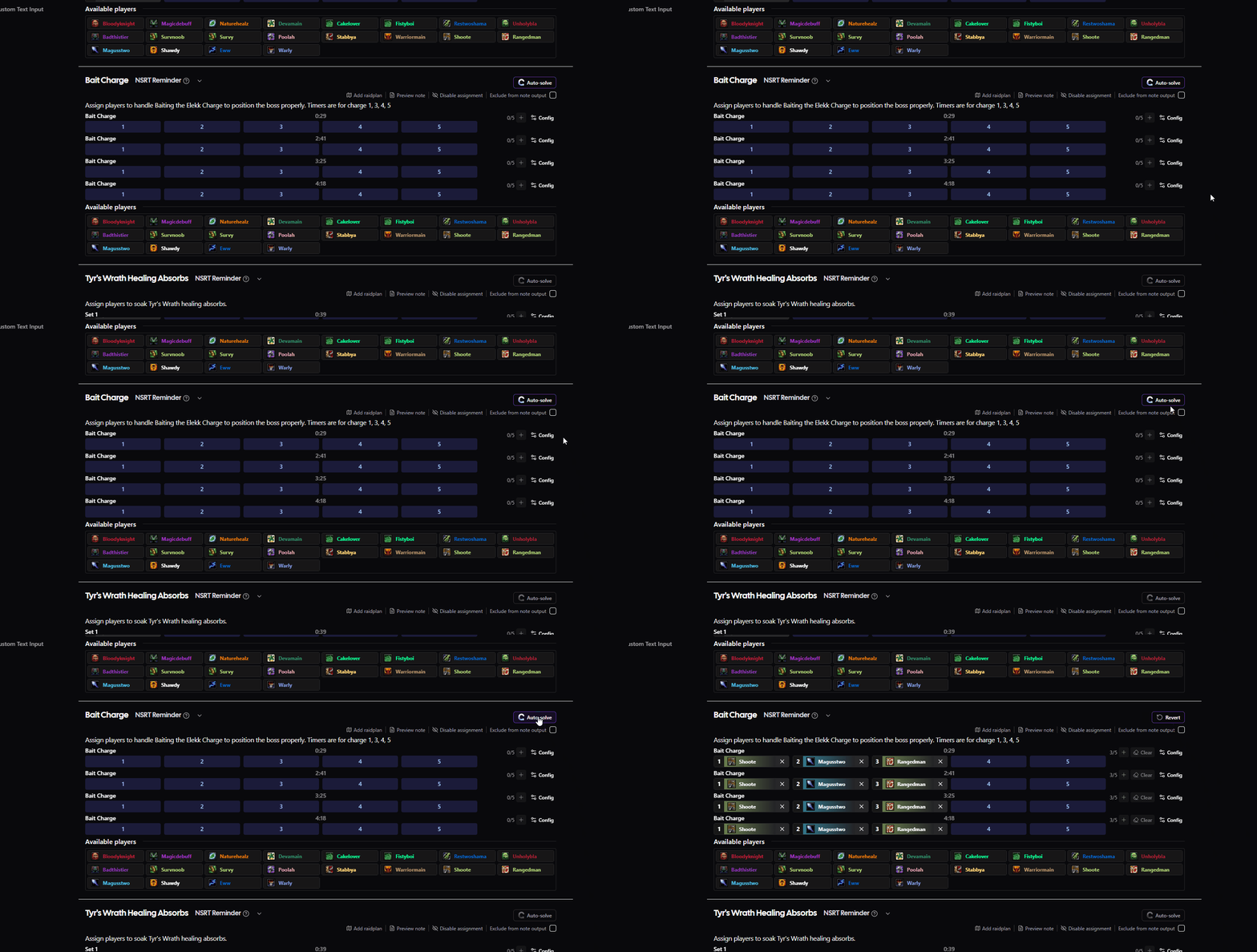
- It solves the fight rather than copying what other guilds did, which is why it takes a moment.
- Thorough logic. Setups get built knowing if you need a DK for the fight. Assignments get shaped around the common strategies.
- Your calls stick. In and out honored, lock anyone in place by right-clicking them on the Setup.
AutoComp is free for everyone. AutoAssign is the Rare supporter tier and up, because every boss needs hand-built logic kept current as strats shift.
Assignments
Everything that is not a cooldown, on a page rebuilt around the fact that a Mythic boss has a lot of it. Integrated raidplans by Raidstrats.gg, that update when you change an assignment, and can be displayed during a ready check or during combat, with your positions highlighted.

- Updates dynamically based on your Setup. If a player is assigned from last week, but is out on the boss this week, they get highlighted so you know who to update.
- Reminders you can shape. Configure any row's reminders in game, when and how it shows. Icon, Text, Bar or Circle, raidframe glow, duration, color and text-to-speech and more!
- Raidplans edited in place, dragging players and objects without leaving the page.
- Easily digestible for your raiders. Raiders can click My Assignments on pages like the You page, Setup, Assignments or Group hub, and get a view with only their assignments visible, and their raidplan positions highlighted.
In-combat raidstrats.gg raidplans
A raidplan in a browser tab is a raidplan nobody reads mid-pull. Yours can now appear in game on a timer, with each player's own spot highlighted.

- Easily configured through the individual Assignments. Add a plan, toggle when to show which scene, import the plan in game, and the rest is handled automatically in your NSRT note.
- You place the cues on the boss timeline: when it shows, which scene, how long it stays.
- Whole raid or assigned only, with each person's own position marked.
- It follows the roster. Swap a player and the highlight moves to whoever holds the slot.
- Ready-made on several Mythic assignments, editable any time by clicking the RSGG Addon button above.
Loot
The Gear Sheet
Loot planning shaped like the in-game gear pane rather than one long wishlist.

- Click a slot for every raid and M+ drop, compared against what you wear and ranked by your sims.
- Sims grew up. Multi-spec, off-spec upgrades, off-spec trinkets, QE Live for healers, stale sims cleared.
- Class wishlists. Pick once per class, apply to any character.
- Loot history from RCLootCouncil, by character, boss or item, with a BiS rate.
Bonus roll targets
Which boss gets your coin, answered from your own sims. One card per boss, best coin first.

- Scored honestly. Average gain across every drop, with items you own and non-upgrades counting as nothing.
- Click the coin to call it, and your officers see it on your player card.
- Real rolls come back through the addon, with a history of what each one paid out.
M+ loot and the Keys board

- Dungeons ranked by what your roster still wants, with loot-spec tips per character.
- Post a run and open five seats, or mark yourself looking and let a run find you.
The guild bank
Balances, income, and boost payouts split among whoever ran it.

- The Owed tab turns what the bank owes you from an officer's memory into something you can read and request yourself.
Warcraft Logs
Top Comps
The full roster behind a top kill, and that roster's cooldowns in one click.

- Import CDs straight into a note, yours to edit from there.
- Filter to comps you could field, by guild or by the specs you run.
- Expand one for its whole cooldown timeline, not just the lineup.
These come from the logs we already pull for rankings rather than a hunt for the cleanest kills, so treat it as ideas rather than a leaderboard.
WCL Top rankings
Where the top 50 parses of your spec press every cooldown, per boss, per difficulty. Free, and no account needed to look.

- Take their timings into your CD plan, or export in-game reminders to NSRT in one click.
- Rankings and heatmap split into tabs, with a boss strip and a searchable spec picker.
WCL Review
Import a raid night and read it back the way you read the planner: a band per player, class colored, with every cooldown they pressed across every pull of the night.

- A whole night in one view. Every pull at once, with trend rows showing where each cooldown actually clusters.
- Review Assignments. Link the night to a setup and it checks the casts against your CD plan, with missed-cast counts per player.
- Compare each player to the top. Shade any cooldown row with when top-ranked players of that spec cast it, and put your casts per pull next to theirs.
- Deaths sit on the player. A skull and count on each band, and every skull says what killed them.
- Share the analysis with your group, or as a public link.

Boss and Class Guides written for CD Planners
Not how to do the fight. What hurts, when, and which cooldowns cover it.

Boss guides for the Season 2 raids are still being written, so expect them to fill in over the coming weeks.
Spell guides are one page per cooldown: what it does, how to assign it, and the talents that change it, with pick rates per boss.

A new look, and mobile

- The UI has evolved a lot since day 1. Thousands of updates to UI/UX have resulted in a mountain moved, and a pretty great website as a result. If we do say so ourselves.
- It works on a phone now. Nearly every page reworked, many with a layout built for a small screen.
Getting started

- One guided setup page: guild, realm, roster, Warcraft Logs, raid times, invites.
- Raiders get their own version when they join from an invite link.
- A Help Center with search across every guide and FAQ, rewritten to match the current screens.
Tell us what to build next
Nearly everything above exists because somebody asked for it. The Roster Report works like a spreadsheet because of one Discord message. Top Comps, mobile, the API writes, the Keys board and half the loot tools came the same way.
If something is missing, or it is there but awkward, say so. The most useful thing you can send us is the moment you got stuck: what you were trying to do, and where it stopped making sense.
If you read this far, thank you so much. We really appreciate all the people who benefit from the tools we sweat over.
Everything, in one list
The sections above are the highlight reel. Below is the full list of what landed since Season 1 started, grouped by where it lives.
Planning your raid week
- The Planning hub gathers your week's plans, setups, links and recent notes on one page.
- Plans lay out week by week across the season, each row showing its coverage of cooldowns and assignments.
- Carry last week's plan forward into this one in a click, leaving the original untouched.
- Start a week blank when you would rather not carry anything over.
- Bring a plan you already use onto a week without duplicating it.
- Rename, publish, move or delete a week from its own menu.
- Right-click the week selector to reach those settings without opening Manage weeks.
- Private reset drafts keep a half-built week hidden from raiders until you publish.
- A group setting makes every new reset start as a draft.
- A draft wears an amber tag with a publish button beside it.
- Link a plan to a specific raid night on the calendar.
- Auto-build roster jumps from the Planning hub straight into Curio AutoComp.
- Planning opens on the current raid week's plan rather than the last one you touched.
- Skipped bosses read as skipped and drop out of the week's readiness counts.
- Bosses list in your configured boss order.
- Week numbers restart at 1 each season and begin at your own region's reset.
- Nights that fall on reset day count in the new week, on both the planner and the calendar.
Setups
- Pin a setup to a raid night, so absent and late flags come from that night's signups.
- Call-outs bench themselves when you update a pinned setup's roster.
- Copying a plan forward moves a Tuesday setup onto next week's Tuesday.
- Up to seven setups per plan.
- Bench presets when you add a setup: keep bench, all in, splitrunning, or swap.
- Focus mode drops the planner to one boss, with seat and bench in a single click.
- A boss strip inside focus mode moves between fights and marks who joins or drops.
- A boss panel sums up seated count, class spread, raid buff coverage and note status.
- Skip a boss for the week and keep its assignments for when you come back.
- Boss notes: a short sticky note per boss column.
- Raidframe group arrangements, drag and drop, with a pin to auto-run on every copy.
- Auto-arrange by role order, split raid, or your own soak assignments.
- Sim values per player on each boss column, cycling upgrades, DPS gain or wishlisted items.
- Per-character weekly vault counts on the setup page.
- Your own row is tagged You in the grid, the roster column and the members list.
- Lock several roster cells in or out at once with shift or ctrl click.
- Auto-build asks which players it may draw from and previews how heavy the run will be.
- Missing raid buffs on a boss warning are tinted by the class that brings them.
- Import a Curio split straight in as a new setup.
- Import a roster from WowAudit, on the spec each player actually signed up as.
- One WowAudit key saved for the whole group, checked and stored encrypted.
- Update roster leaves socials out unless you ask for them, and keeps your bench.
- Buyers sit as inline rows in the reset config.
- Colorblind-friendly status icons on the CD, AS and Copy buttons.
The cooldown planner
- Multi-select spells and notes with ctrl-drag, then move, edit or delete them together.
- Copy and paste any assigned spell or note, settings included.
- Cooldown type filters sit on the toolbar as chips, in plainer categories.
- Custom fight length trims the timeline for a fast reclear, saved with the plan.
- A per-spell charge count override.
- Custom durations on spells.
- Text reminders accept a spell ID so they can carry an icon.
- Reminder display types: icon, text, bar or circle, with an animated preview.
- Spell visibility is remembered per note, and can be saved as a default per spec.
- Toggle a whole spell type at once in the per-player spell popover.
- Group actors G1 to G8 on the cooldown page.
- Boss abilities carry cast times and tick rates on the timeline.
- Boss ability tooltips on hover, including the time since that ability last cast.
- Phase lines show the typical and fastest push times read off logged kills.
- A changelog per boss listing every timer edit we have made, graded by whether you need to act.
- Note version history for every group, with restore and automatic saves.
- Zooming keeps player cooldown context and hides boss rows with nothing in range.
- Spells on the timeline link out to their spell guides.
- Ability duration bars stop at the phase line instead of overhanging.
- A calmer timeline: more room between rows, softer class colors, a flat background.
Cooldown plans, templates and the Library
- CD Templates assign cooldowns to a spec or class slot instead of a name.
- One template links to any number of setups and fills from whoever is in.
- Preferred characters keep the same raider on the same cooldowns week to week.
- Class-wide cooldowns sit on a class slot, so any spec of that class can take them.
- Convert between a plan and a template in either direction.
- The chooser explains the difference between a plan and a template before you commit.
- The Cooldown Library is a public shelf of cooldown plans shared by users.
- Publish your own plan to the Library with your raiders kept anonymous.
- Supporter cooldown templates for every boss appear in the Library.
- Filter the Library by the composition you run, with a Flexible or Specific badge.
- Browse the Library as cards or as a compact list.
- Paste your raid from NSRT and copy a full cooldown note back, with no setup needed.
- Library packs get a link preview card, and pack owners can edit their pack.
- Copy a note to your personal notes or to any group you can edit.
- A chain icon marks which notes are currently linked to a setup.
- The boss switcher follows the setup a note is linked to.
- Descriptive browser tab titles on cooldown and assignment pages.
- Hovering a saved note pops a summary of its cooldowns by role and spec.
Assignments
- The assignment planner is a grid of fixed numbered spots that never re-pack themselves.
- Drag a player onto a filled spot to swap the two.
- Quick Fill drops each player you pick into the next empty slot.
- The available players list sorts itself and splits into recommended sections.
- Class and spec recommendations per assignment row.
- Every section collapses to a summary card with its fill count and warnings.
- Sections you disable drop into a hidden area at the bottom of the page.
- Reorder assignments for the whole group from the sidebar.
- A visual timer editor places reminders on the boss timeline by clicking and dragging.
- Phase lines can be dragged on that same timeline.
- Reminder configs carry raidframe glow, spell ID, duration, color and text to speech.
- Glows can target whoever currently fills a slot rather than a fixed player.
- A row header shows who gets a glow without opening the row.
- Power Infusion reminder blocks on every boss.
- An interrupt macro generator turns a kick order into per-player macros.
- A panic kick macro for anyone without an assignment.
- Collapse an assignment's description to keep the view tight.
- Block titles appear as headers in the copied text note.
- Collapsed blocks stay how you left them into next week's assignment.
- Place anyway lets you confirm a duplicate the no-duplicate rule blocked.
- Durations and ticks are shaded in the assignment timer editor.
Raidplans
- Raidstrats.gg raidplans embed on assignment pages and load themselves as you scroll.
- Edit a raidplan in place: drag players and objects, then save back to Raidstrats.
- Editing one of our prebuilt plans duplicates it into your own Raidstrats account.
- Raidplan indexes map to your assignment slots, so a swap updates the plan.
- Set which index a row starts at.
- Crystal carriers and other assignment badges appear on the plan on their own.
- Your own characters get a highlight glow on the embed.
- In-combat raidplan popups: place timed cues on the boss timeline.
- A cue shows to the whole raid or only assigned players, with each person's spot marked.
- Target specific assignment rows with a cue.
- Ready-made cues on several Mythic assignments.
- The plan also shows during a ready check.
- Colored circles or class icons, index numbers and name length are all yours to set.
Curio
- AutoComp builds a full setup, boss by boss, in one click.
- It balances tanks, healers, raid buffs, spec spread, and loot and vault needs together.
- Set per-boss healer and tank counts and a melee to ranged split.
- Bench rotation shares the bench fairly across a deep roster.
- Honor who called themselves in, and keep players on their main role.
- Lock everyone you have already placed and fill only the empty seats.
- It checks a comp can actually work, and names the players it strands.
- It reports how many of your raiders reach a full vault, and why when they cannot.
- AutoAssign fills a boss's assignment blocks from your roster, matched by class and spec.
- Re-solve with minimal changes fills the gaps and leaves everyone else in place.
- A solve tells you what it did, and why each player was picked.
- An opt-in tie-break leans on who actually raided in the past.
- The split optimizer spreads loot priorities across 2 to 5 splits.
Boss content
- Heroic and Mythic timers for every Season 1 and Season 2 boss.
- Sporefall's Rotmire, then both Season 2 raids, were in the planner before they went live.
- Timers are re-derived from live kills as bosses die, with a warning when a plan needs redoing.
- Prebuilt assignments per boss: kick orders, kill squads, soaks, spreads and positions.
- Strategy-specific assignment blocks where raids split on approach.
- Empower order pickers for the bosses whose ability order the raid chooses.
- Raid damage windows, ramping rot, add spawn timers and phase cues on the timeline.
- Flex caps read from the boss, so a 25-player Sporefall roster is not flagged.
- Custom bosses for anything we do not cover.
- Season 2 trinkets and potions in the spell list with their real cooldowns.
- Class spell data rechecked against the live game each patch.
Warcraft Logs
- The WCL hub gathers import, Compare, Top Rankings, Heatmap and Top Comps in one place.
- WCL Top splits player rankings and the cooldown heatmap into their own tabs.
- A boss strip and a searchable spec picker replace the old nested dropdowns.
- Your view settings, filters and picked players stick between visits.
- Top Comps shows the full roster behind a top kill.
- Import a top kill's cooldowns into a note in one click.
- Filter comps by guild, or by the specs you actually run.
- Expand a comp for its whole cooldown timeline.
- WCL Review gives every player a class-colored band with the cooldowns they pressed.
- Narrow to one pull and it switches to a per-player row on a real clock.
- Deaths sit on the player, and every skull says what killed them.
- Death markers link straight to the event on Warcraft Logs.
- Compare vs Top shades your cooldown rows with when top players of your spec cast them.
- Casts per pull sit next to theirs, with a phase-by-phase breakdown on hover.
- Compare Assignments checks a night's casts against your CD plan, with missed counts.
- A wipe and kill lane under the timeline, hover a marker to isolate those pulls.
- Export in-game reminders to NSRT from the rankings page.
- Class heatmaps aggregate every spec of a class into one.
- Share an analysis with your group, or as a public link.
Raid logs
- Raid Sessions lists every night you raided, with what you cleared and how long it ran.
- Open a night for its full reconstruction: kills, wipes, trash and gaps, in order.
- Time in combat, on trash, setting up, and your single biggest gap, each as a share of the night.
- Mark and label breaks so a dinner break does not read as wasted time.
- Clear speed tracks every full clear across the season against your typical time.
- An anonymous worldwide ranking against other guilds on the same raid and difficulty.
- Progression pacing shows your typical time between pulls on a boss you are still learning.
- One button rebuilds a night's timeline and insights.
- Mark a night so it does not count, and drop it from attendance, insights and stats at once.
- Imports that cannot run right away queue and finish themselves.
- Expired logs get a recovery tag instead of quietly disappearing.
- Mid-raid syncs catch up with the pulls that came after them.
- Stats can be zoomed to a single boss.
Loot and wishlists
- Multi-spec wishlists: one droptimizer per spec per slot.
- QE Live imports for healers, alongside Raidbots.
- Off-spec upgrades, off-spec trinkets for tanks and healers, and catalyst items all count.
- Class wishlists: pick once per class, then apply to any character.
- Turn on Normal, Heroic, Mythic and Mythic+ at once and read them side by side.
- One row per difficulty, each with its own item level, claimants and gains.
- Wanted rolls on BoE picks: main stat, minor stat and tertiary.
- Call yourself in or out of a boss, with a note for the raid lead.
- Bonus roll targets rank every boss by what a coin is honestly worth there.
- Click the coin to call your target, and your officers read it off your player card.
- Real bonus rolls come back from the game with a history of what each one paid out.
- Group Overview hides passes, items already owned, and non-upgrades by default.
- Same class side by side puts one column per character of a class.
- By class is a grid with notes, sim gains, a response filter and clickable names.
- Officers can edit a member's picks on their behalf.
- Name the five priority tiers whatever your loot council calls them.
- Pick which bosses count as targets, per season and per difficulty.
- Loot view defaults decide how the whole team's loot views open.
- Close a difficulty off so members cannot pick it at all.
- Export every pick to CSV, with your own columns and raid and M+ together or apart.
- An Owned items view lists who already has an item, and on which track.
- Season 2 loot landed before the season did, with matching item levels and icons.
- Item effects and bonus sockets show on tooltips.
- Stale sims can be cleared automatically once past your freshness limit.
- Vault socket enforcement keeps droptimizers comparable across the roster.
- A row per raid when a season sims in two parts, with a 1/2 progress read.
- BiS marks come from Icy Veins and follow the spec you are looking at.
The Gear Sheet
- Your character laid out like the in-game gear pane, slot by slot.
- Click a slot for every raid and dungeon drop that fits it.
- Rate each item with a colored dot, straight onto your wishlist.
- Hover an item to compare it stat by stat against what you wear.
- Your biggest sim upgrades ranked per slot.
- Missing enchants and empty sockets flagged in the middle of the sheet.
- A green edge on the slots where you are already best in slot.
- One character switcher shared across every loot view.
Loot history
- Import your RCLootCouncil exports into the group.
- Views by character, boss, item and timeline, with a BiS rate.
- Filters for tier, raid, difficulty and date range, all reflected in the URL.
- Aliases roll mis-mapped names onto the right character.
- Purge entries before a date, or clear the history outright.
- Choose which response labels count toward the BiS rate.
- Hide responses you do not track, like Transmog or Disenchant.
Mythic+
- The M+ Loot tab ranks every dungeon by how much wanted gear sits in each.
- Loot-spec tips when an item you want cannot drop for your current spec.
- A personal view ranks dungeons by what you still want, with your best clear time.
- Teammates whose wishlists overlap yours are surfaced as people worth inviting.
- The Keys board posts a run with five seats onto your calendar.
- Join a seat with the character and spec you want to bring.
- Mark yourself looking, list your characters and windows, and join the pool.
- One click builds suggested groups by loot overlap or buff coverage.
- Double-booking is flagged before you take a seat.
- The M+ optimizer ranks dungeons for a five-player team you build by hand.
- A Great Vault widget with key level, reward item level and tier per slot.
Your roster
- Characters refresh on a priority schedule, with your raid team refreshed most often.
- A freshness clock per character, colored by how much to trust what you see.
- Sync Guild Members and Refresh Roster Data as two clearly separated jobs.
- Push a single character to the front of the refresh queue.
- Roster refresh confirms before removing anyone missing from the fetched roster.
- Import your own characters from your linked guild in one click.
- Time away marks you absent across a whole date range, including nights not scheduled yet.
- A Who's away popover lists everyone's current and upcoming time off.
- Officers can set time away for anyone.
- A Next Tier check-in collects what everyone plans to play, and rolls it up.
- Share next tier results with the raid, with a line saying what you still need.
- Clear roster removes the members you pick in one pass, behind a typed confirmation.
- Professions filters by expansion and skill threshold, plus a by-profession view.
- Nicknames per player, exported for NSRT and swapped into the notes you copy.
- Members show when they were last around.
The Roster Report
- One landing page for your whole roster's gear, built from data already pulled.
- Sort and filter from the column headers, like a spreadsheet.
- Filters shaped like real questions: has gear issues, not raid ready, no key this week.
- Drag, resize and reset columns, with the layout remembered per view.
- Tabs for summary, gear, upgrades, enchants and gems, Mythic+, professions and attendance.
- Attendance puts who signed up next to who showed, mains and alts rolled together.
- A Data tab showing your roster's average freshness and who is due a refresh.
- Item levels tinted against your own roster's range.
- Group the whole report by role, or flatten it into one sortable list.
- Upgrade ranks, crafted and Voidforged markers per slot.
Your own page
- The You page: your characters, your nights, your bosses and your tasks in one place.
- Edit a character's spec, status and off-specs in place, live for your officers.
- Sign yourself up for your next few nights without opening the calendar.
- This week reads night by night, with the bosses and specs you play on each.
- Gear readiness per character, with the full list of what to fix on hover.
- Set off-specs once for a whole class of alts, and opt a single character out.
- A checklist that writes itself from what is missing before raid.
- A note to the team, and officer to-dos each raider ticks off.
- Officers choose which of those checks their group actually asks for.
- Request in on a boss by clicking its portrait, with your sim gain drawn on it.
- One badge per sim your guild asks for, colored by whether it is current.
- Pick your bonus roll boss from the You page.
- Your player sheet shows only your own cooldowns, assignments and timers.
- Spell targets on the player sheet, and the spells other raiders cast on you.
- My Assignments views on the setup, the assignments page and the group hub.
The calendar
- Events show in your group's server time with your own local time underneath.
- Pick your realm's timezone, covering US, EU, Oceanic, New Zealand and the Americas.
- A 24h and 12h toggle per member.
- Week starts on Sunday for US, Korean and Taiwanese groups.
- Rename an individual night without touching the rest of the schedule.
- Bulk signup for any combination of members, with per-rank filters.
- Setting your raid times is one screen, with a live preview of what will fill in.
- Month grid and list layouts, with a role breakdown on each night.
- Cards lead with the raid and difficulty, and read differently once you have answered.
- Members must confirm attendance is an option, off by default.
- Merge or remove former members so they stop double-counting.
- Cancel or delete a stretch of nights from a separated danger area.
- Schedules can be marked optional or off night.
- One save for a whole night of signups.
Recruiting
- Your team gets its own public apply page, live the moment you switch it on.
- Applicants sign in with Battle.net and pick a character they genuinely own.
- Item level, M+ score, progression and optional Warcraft Logs parses sit next to the answers.
- A wanted board of the roles and specs you need, with the urgent ones flagged.
- Your raid week, prog and farm nights, taken from your calendar.
- Applicants can add alts from the same Battle.net account.
- Reorder your questions, reword them, turn them off, or add your own.
- Private officer notes, an optional message with your decision, and attachments.
- Accepting sends a personal invite and puts their character on your roster.
- Change or reverse a decision, with the earlier one kept on record.
- Recruiting has its own four permissions, separate from roster editing.
- The languages your team raids in show on your page and filter the guild directory.
The guild bank
- Track balances across as many holders as you keep gold on.
- Log income from boosts, donations and sales, with a screenshot or log attached.
- Split a boost run's pot, with cuts off the top and per-person overrides.
- Members request payouts and reimbursements, admins approve and mark them paid.
- An Owed tab shows every booster what they have earned, been paid, and are still owed.
- Request your full balance in one click.
- Paste a proof screenshot straight from your clipboard.
- Every bank action lands in the audit log.
Managing a group
- Rank permission presets edited one rank at a time, every toggle described.
- Granular permissions, including hiding the loot wishlist from a rank.
- An audit log recording who changed what across the whole group.
- Boosted groups also see note and plan edits, one line per editing session.
- Quick links in the header to Warcraft Logs, Raider.IO, the Armory and your own links.
- Group banners built from colors, patterns and artwork, with a full studio behind them.
- Banners show on your group page, apply page, link previews, and as downloads.
- A guided first-time setup for new groups, and a raider version for people joining.
- Claiming your spot preselects the match for your BattleTag.
- Removing someone spells out exactly what they lose first.
- A group whose owner vanished can be claimed through a countdown every admin sees.
- The sidebar expands into every named page in a section.
- BattleTags of non-admins are hidden in the members list.
- Boost Tier 4 opens templates, examples and an ad-free site to a whole group.
- A supporter page laying every tier's perks out side by side.
The Discord bot
- Baldio posts your raid nights with the setup attached as an image.
- Posts are edited in place as signups and setups change.
- Raiders set their signup status on the post, or with a /raider command.
- Signup reminders ping only the people who have not answered.
- Stale sim warnings ping the people whose sim is out of date.
- An officer feed of raid nights, signups, applications, plan changes and roster moves.
- Weekly setup posts on a day and time you pick.
- The Keys board posts to a channel, with the pings you choose.
- One Discord server can run several teams, with channels bound per team.
- Officer and raider roles per team, not just per server.
- Different raid nights can post to different channels.
- Quiet hours stop new posts landing overnight on your server's clock.
- A test post proves the bot can actually reach a channel.
- Every channel card says whether Baldio can still post there, and what permission it needs.
- Scheduled posts recover on their own after a failure.
- Raiders can submit a sim link from Discord.
- The whole setup moved from slash commands onto your group's Integrations page.
The public API
- A per-group key, off until an admin turns it on.
- Read your roster, resets, setups, calendar, signups, wishlists and sim freshness.
- Read your activity feed, who is not ready for a night, and your Mythic+ keys.
- Write a droptimizer, set a signup, edit the roster, and add or remove setups.
- Writes land live for anyone with the planner open.
- A points-based hourly quota you can watch, with cached responses free.
- A developers page and a full API reference.
In the game
- The WowUtils addon shows your team's wishlists and sims where the loot drops.
- It adds a wowutils column to the RCLootCouncil voting window and loot frame.
- It reads crests, upgrade watermarks, Spark counts and your real Great Vault.
- WowUtils Bridge moves the data both ways, run by one person per guild.
- A page laying out what each raider installs, and why.
Guides and help
- The Help Center searches every guide and FAQ in one place.
- Boss guides written around what hurts, when, and which cooldowns cover it.
- Spell guides per cooldown, with how to assign it and talent pick rates.
- Hero talent pick rates per boss on every spell guide.
- Video guides have their own home next to the written ones.
- A Community page showing what your feedback has shipped.
- Rewritten NSRT and Discord bot guides.
In your language
- Korean, Simplified Chinese, Traditional Chinese and Russian.
- Wowhead links and tooltips open in the language you picked.
Look and feel
- A new palette and a single typeface across the whole site.
- The assignments page rebuilt around collapsible summary cards.
- Viserio works on a phone, with layouts built for a small screen.
- Filters, tab rails and touch actions all have phone versions.
- Pages load into their real shape, with placeholders instead of spinners.
- Notifications are quieter and sit in the bottom-right corner.
- The player sheet, roster, group menu and news pages all got a visual pass.
Speed and reliability
- Responses carry only what the screen shows, so big rosters load faster.
- Group lookups are shared across everyone in the group instead of repeated per person.
- Guides, help, news and the spell library are served from a cache close to you.
- Every outbound call has a deadline, and a failed request stops retrying into a pile.
- Version changes are handled in the background, so no manual reload.
- Server upgrades and load work through the tier's busiest nights.
On wowutils.com
- A new homepage that opens on the current tier and maps every tool on the site.
- A tools page grouping everything by what it does.
- The Great Vault simulator, M+ loot calculator and loot guides rebuilt for Season 2.
- A guild directory you can filter by the languages a team raids in.
- News filtered by product: the site, Baldio, the in-game software, or the API.
- Patreon pledges grant the Legendary supporter tier.
As always, feedback and ideas are welcome in Discord or on the Community page.